Overview

Ethernet Gateway is a lightweight bridge that connects serial devices and legacy systems to modern TCP/IP networks.

Ethernet Gateway is a standalone, retro-themed server written in Rust that bridges vintage and modern computing. It provides telnet and SSH access to a full-featured gateway with XMODEM, XMODEM-1K, YMODEM, ZMODEM, Kermit, and Punter file transfer, SSH and telnet proxying, an AI chat client, a text-mode web browser, weather reports, and Hayes-compatible serial modem emulation on two physically independent serial ports (each port also flips to a telnet-serial console bridge on demand).

Designed to work with hardware as old as the Commodore 64 and CP/M machines while remaining fully functional on modern ANSI terminals, Ethernet Gateway adapts its display automatically to the capabilities of each connected client.

Download: Pre-built binaries are available on the GitHub Releases page.

Features
[F] File Transfer Upload, download, and delete files via XMODEM, XMODEM-1K, YMODEM, ZMODEM (batch), Kermit (server + client), or Punter C1 (Commodore).
[S] SSH Gateway Proxy connections to remote SSH servers with host key verification.
[T] Telnet Gateway Proxy connections to remote telnet servers.
[G] Serial Gateway Bridge a telnet/SSH session directly to one of the two serial ports (Port A or Port B), whichever you pick from the A/B picker. Available when at least one port is in console mode. Press ESC twice to leave.
[A] AI Chat Conversational AI powered by Groq (llama-3.3-70b-versatile). Free API key.
[B] Simple Browser Text-mode web browser supporting HTTP, HTTPS, and Gopher with forms and bookmarks.
[W] Weather Current conditions and 3-day forecast by US zip code via Open-Meteo.
[C] Configuration Full server configuration from the terminal. Changes are saved immediately.
Additional Features: GUI configuration console with live log output, Hayes AT-compatible serial modem emulation, optional authentication with per-IP lockout, Ed25519 SSH server, and POSIX signal handling for graceful shutdown.

Getting Started
Build from Source

Prerequisites

A C toolchain and a few system libraries are required to build from source. On Debian/Ubuntu:

sudo apt install -y build-essential pkg-config cmake curl libudev-dev

See the README for Fedora, Arch, macOS, and Windows instructions.

Compiling

  1. Install Rust: rustup.rs
  2. Clone the repository
  3. Build a release binary: cargo build --release
  4. The binary is at target/release/ethernet-gateway

An AppImage is also available for x86_64 Linux systems.

First Run

When launched for the first time, Ethernet Gateway creates a configuration file (egateway.conf) and the transfer/ directory automatically.

$ ./ethernet-gateway
Ethernet Gateway v0.6.2
Author: Ricky Bryce

Created default configuration: egateway.conf
Config: telnet=true, port=2323, security=false, transfer_dir=transfer
Tip: The GUI console window opens by default. Closing it does not stop the server — press Ctrl-C to stop. Set enable_console = false for headless operation.
Connecting

Telnet (default port 2323)

  1. Ensure telnet is installed on your system
  2. Connect: telnet localhost 2323
  3. Press backspace when prompted (terminal auto-detection)
  4. Answer the color prompt (Y/N)

SSH (default port 2222, disabled by default)

  1. Enable SSH in the configuration
  2. Connect: ssh -p 2222 admin@localhost
  3. Enter the login password (default: changeme — the same one telnet and the web UI use)

Terminal Types

Terminal type is auto-detected by examining the byte sent when the user presses backspace.

PETSCII

Commodore 64/128. 40 columns, 25 rows. Backspace = 0x14. Escape: or _ key. Automatic case-swapping for the PETSCII charset.

ANSI

Modern terminals. 80 columns, 24 rows. Backspace = 0x08 or 0x7F. Full ANSI color and formatting. Escape: Esc key.

ASCII

Generic terminals. 80 columns, 24 rows. Any other backspace byte. No color output. Escape: Esc key.

Color: After terminal detection, you are asked whether your terminal supports color. No default is assumed — you must answer Y or N. All menus and text fit within the 40-column limit for PETSCII terminals.
How detection works on the wire: terminal type is also learned from telnet option negotiation (the TTYPE option), and the gateway negotiates echo, suppress-go-ahead, and window size at connect. For a detailed guide to the whole negotiation process — the IAC commands, the WILL/WONT/DO/DONT verbs, and every option's purpose — see the Telnet Negotiation Reference.


File Transfer

Upload, download, and manage files on the server using XMODEM, XMODEM-1K, YMODEM, ZMODEM, Kermit, or Punter. The gateway supports the full Forsberg ZMODEM spec including batch sends/receives + ZSKIP, a spec-complete Kermit implementation with both client and server modes, and single-file Punter C1 (“New Punter”) for Commodore 64/128 terminals like CCGMS, Novaterm, and StrikeTerm.

Kermit reference: Kermit's command surface is documented separately on the Kermit Reference page — server-mode operation, the full G-subcommand table, capability negotiation, RESEND, locking shifts, and configuration keys.
Uploading a File

Steps

  1. Press U to begin an upload
  2. Enter the filename when prompted (max 64 characters; letters, digits, dots, hyphens, underscores; cannot start with a dot; cannot contain ..)
  3. If the file already exists, confirm overwrite with Y
  4. On the SELECT UPLOAD PROTOCOL screen press X (XMODEM/YMODEM, block size + CRC mode + YMODEM block-0 header auto-detected), Z (ZMODEM), K (Kermit, any flavor — see the Kermit Reference), or P (Punter C1)
  5. The server waits up to 45 seconds for your terminal to begin sending — tunable per protocol via xmodem_negotiation_timeout (XMODEM / XMODEM-1K / YMODEM), zmodem_negotiation_timeout (ZMODEM), kermit_negotiation_timeout (Kermit, default 300 s), or punter_negotiation_timeout (Punter, default 45 s)
  6. In your terminal client, start the matching send — e.g. ExtraPutty's File Transfer › Zmodem › Send, SyncTerm's Ctrl-PgUp, any XMODEM/YMODEM “Send File” dialog, or for Kermit a client like kermit -s file (C-Kermit) / Kermit-95
  7. For a ZMODEM batch, the first file is saved under the name you entered; any additional files the sender transmits are saved under the sender's own filename (after path-safety validation — colliding names are auto-skipped via ZSKIP). Kermit batches use the same per-file save-as behavior
Downloading a File

Steps

  1. Press D to begin a download
  2. A paginated list of files is displayed — enter the file number
  3. On the SELECT PROTOCOL screen press X (XMODEM, 128-byte blocks), 1 (XMODEM-1K, 1024-byte blocks with SOH fallback), Y (YMODEM, filename + size header), Z (ZMODEM, auto-starts in most modern terminals), K (Kermit, any flavor — see Kermit Reference), or P (Punter C1; the outbound file type — PRG, SEQ, or USR — is auto-detected from the filename extension)
  4. Start the matching receive in your terminal and choose where to save the file locally
  5. The file is transmitted and the server reports bytes / blocks / elapsed time on completion
Directory Navigation

Press C to change directories. Subdirectories within the configured transfer directory are listed. Enter .. to go up one level. All paths are canonicalized to prevent symlink escapes.

XMODEM Protocol Details
ParameterValue
Block size128 bytes
Error detectionCRC-16 (preferred) with checksum fallback
CRC polynomialCCITT 0x1021
Maximum file size8 MB
Negotiation timeout45 seconds (configurable, 1–300s)
Block timeout20 seconds (configurable, 1–120s)
Max retries per block10 (configurable, 1–100)
Padding byte0x1A (SUB), stripped on receive
XMODEM reference: For a step-by-step account of how negotiation works and how data moves on the wire — CRC-16 vs. checksum, 128-byte / 1K / YMODEM framing, and the full handshake for both uploads and downloads — see the XMODEM Protocol Reference page.
YMODEM reference: For YMODEM's additions — the block-0 filename/size/mtime/mode header, batch transfers and the end-of-batch block, and exact size-based truncation, with step-by-step upload and download handshakes — see the YMODEM Protocol Reference page.
ZMODEM reference: For ZMODEM's streaming design — ZDLE escaping, hex/binary headers, CRC-16/CRC-32, the ZRQINIT/ZRINIT/ZFILE/ZDATA/ZEOF/ZFIN handshake, autostart, and position-based resume — see the ZMODEM Protocol Reference page.
Kermit transfer reference: For Kermit's packet format, the Send-Init parameter handshake, and the F/A/D/Z/B transfer sequence step by step (uploads and downloads), see the Kermit Transfer Reference page — or the comprehensive Kermit Protocol Reference for server mode and full configuration.
Punter reference: For Punter C1's two-phase design — the 7-byte block header, the dual additive + cyclic checksums, the size-of-next-block field, the GOO/BAD/ACK/S-B/SYN handshake, the type-block-then-data-blocks flow, and the end-off, with step-by-step upload and download handshakes — see the Punter C1 Protocol Reference page.
IAC & CR-NUL Transforms

Telnet NVT (RFC 854) reserves byte 0xFF as the IAC command marker and requires bare CR (0x0D) to be sent as CR-NUL. Strict clients (PuTTY / ExtraPuTTY, Tera Term, C-Kermit) follow these rules; many retro clients (IMP8, CCGMS, StrikeTerm, AltairDuino firmware) just blast raw bytes. We can't tell for sure which one you're running, so the default is set from the detected terminal type — ASCII and PETSCII get escaping off, ANSI gets it on. That's right for the overwhelming majority of real-world combinations, but if a transfer fails repeatedly with bad-block / CRC errors, press I in the File Transfer menu to flip it the other way and retry.

Quick check: if you see consistent block-CRC failures in one direction, the two sides disagree on escaping. Toggle I and retry.

SSH & Telnet Gateways
SSH Gateway

Connect to remote SSH servers through Ethernet Gateway. Press S from the main menu.

SSH reference: For the full picture of both SSH roles — the inbound server, the three key files, trust-on-first-use host-key verification, the password-vs-gateway-key auth modes, and ANSI stripping — see the SSH Reference page.

Connecting

  1. At the first prompt, press K to view the gateway's public key (see Public-Key Authentication below), or any other key to continue
  2. Enter the remote server hostname or IP address
  3. Enter the port (default: 22)
  4. Enter your username for the remote server
  5. If the host key is unknown, confirm the SHA-256 fingerprint; if it has changed, review the warning carefully before accepting
  6. The gateway authenticates with the single configured method (config key ssh_gateway_auth): in password mode (default) it prompts you for the remote password; in key mode it uses the gateway's own client key. There is no fallback between the two — the remote sees exactly one auth attempt
  7. Once authenticated, you have a full interactive shell on the remote server
  8. Press Esc twice to disconnect and return to the main menu

Public-Key Authentication (gateway-key mode)

  1. Set ssh_gateway_auth = key in config — this is what enables key-based dial-out (the default is password)
  2. On first outbound dial, the gateway auto-generates an Ed25519 client keypair and stores it as ethernet_gateway_ssh_key (0o600 on Unix)
  3. From the SSH Gateway menu, press K — the public key is displayed in OpenSSH ssh-ed25519 AAAA… format
  4. Copy that single line into the remote server's ~/.ssh/authorized_keys
  5. Dials to that host then authenticate with the key and skip the password prompt entirely (in key mode the gateway never falls back to a password)
Host Key Verification: Known remote-server host keys are stored in gateway_hosts (in the gateway's working directory, 0o600 on Unix). This is independent of any OpenSSH ~/.ssh/known_hosts you may have. Trust decisions (first-time accept, key update, key rejection) are written to the server log for auditability.
Three SSH key files exist, do not confuse them:
  • ethernet_ssh_host_key — this gateway's own SSH server host key (used when clients connect to us over SSH)
  • ethernet_gateway_ssh_key — this gateway's outgoing client keypair (used when we dial out to remote SSH servers)
  • gateway_hosts — trusted remote-server fingerprints (analogous to OpenSSH's known_hosts)

Per-IP lockout is shared with the telnet server: after 3 failed authentication attempts in 5 minutes, the source IP is blocked for 5 minutes across both protocols.

ANSI escape sequences from the remote server are automatically stripped when connected from a PETSCII or ASCII terminal, ensuring readable output on vintage hardware. The PTY is sized 40×25 for PETSCII and 80×24 for ANSI/ASCII.

Telnet Gateway

Connect to remote telnet servers through Ethernet Gateway. Press T from the main menu.

Connecting

  1. At the mode prompt, press T to toggle between Telnet protocol and Raw TCP mode (see Protocol Modes below), or any other key to continue
  2. Enter the remote host and port (default 23)
  3. Session bytes are proxied between your terminal and the remote
  4. Press Esc twice to disconnect

Protocol Modes

  • Telnet protocol (default) — the gateway parses IAC framing, unescapes IAC IAC to literal 0xFF data, accepts peer-initiated WILL ECHO cooperatively, and refuses other options with DONT/WONT. Works with any RFC-compliant telnet server.
  • Cooperative (telnet_gateway_negotiate = true) — adds proactive offers of WILL TTYPE, WILL NAWS, and DO ECHO at connect, plus mid-session NAWS forwarding when you resize. Makes modern BBSes (Synchronet, Mystic) render at your actual window size.
  • Raw TCP (toggled with T, persisted to egateway.conf) — disables the telnet IAC layer entirely. Use this when dialing destinations that aren't really telnet: some MUDs, hand-rolled BBS software, or custom services on port 23. Bytes to your local client are still IAC-escaped so a stray 0xFF doesn't confuse your telnet client.
RFC compliance: In telnet-protocol mode the gateway uses the full RFC 1143 six-state Q-method for option negotiation and caps subnegotiation bodies at 8 KiB to prevent malicious remotes from exhausting memory. It never stalls waiting for a reply, so silent or partially-compliant remotes still work.

AI Chat

Conversational AI powered by Groq's llama-3.3-70b-versatile model.

Setup

Getting an API Key

  1. Visit console.groq.com and create a free account
  2. Generate an API key from the Groq dashboard
  3. In Ethernet Gateway, go to Configuration > Other Settings
  4. Enter your API key when prompted
Usage

Chatting

  1. Press A from the main menu
  2. Type your question and press Enter
  3. The response is displayed with pagination
  4. Use P/N to page through long responses
  5. Ask follow-up questions or press Q to exit
Details: Responses are word-wrapped to fit your terminal width (40 columns for PETSCII, 80 for ANSI/ASCII). The API timeout is 30 seconds per request. Maximum response size is 1 MB.

Simple Browser

Text-mode web browser supporting HTTP, HTTPS, and Gopher.

[G] Go / Search Enter a URL or search term to navigate.
[P/N] Page Nav Previous / Next page of the current document.
[T] Top Jump to the top of the current page.
[E] End Jump to the end of the current page.
[S] Find Search within the current page.
[L] Links List numbered links on the page and follow one by number.
[F] Forms Interact with HTML forms (text, dropdown, checkbox, radio, textarea).
[K] Bookmarks Save and load bookmarks (up to 100, stored in bookmarks.txt).
[B] Back Navigate back through browsing history.
[H] Help Display browser help.
[Q] Quit Exit the browser and return to the main menu.
Limits: Maximum response body is 1 MB. HTTP timeout is 15 seconds. Maximum rendered lines per page is 5000. Page width adapts to terminal (33 columns for PETSCII, 73+ for ANSI/ASCII). HTTPS falls back to HTTP automatically if TLS fails.

Weather

Current conditions and 3-day forecast for any US zip code.

Press W from the main menu. Weather data is provided by the Open-Meteo API (free, no API key required). Your last-used zip code is saved for convenience.

Display Includes

  • Current: Temperature (°F), "feels like", humidity %, wind speed and 16-point compass direction
  • Forecast: 3-day outlook with daily high/low temperatures and conditions

Configuration

Press C from the main menu. Changes are saved to egateway.conf immediately.

Security Settings

Authentication is disabled by default. When disabled, only private/loopback IPs are allowed, and gateway addresses (*.*.*.1) are rejected.

SettingDefaultDescription
Security enabledfalseRequire login authentication
UsernameadminLogin username — shared by telnet, SSH, and the web UI
PasswordchangemeLogin password — shared by telnet, SSH, and the web UI
Important: The default password is changeme. If you enable security, change the password immediately. After 3 failed login attempts from the same IP, that address is locked out for 5 minutes — and the lockout applies to all three protocols (telnet, SSH, web UI), so an attacker can't bounce between them to reset the counter.
Server Configuration
SettingDefaultDescription
Telnet enabledtrueEnable/disable the telnet server
Telnet port2323TCP port for telnet connections
SSH enabledfalseEnable/disable the SSH server
SSH port2222TCP port for SSH connections
Max sessions50Maximum concurrent connections
Idle timeout900s (15 min)Disconnect after inactivity (0 = disabled)
File Transfer Settings

In the telnet menu, Configuration › F File Transfer opens a submenu with the shared transfer directory plus per-protocol pages for X XMODEM, Y YMODEM, Z ZMODEM, K Kermit (plus Kermit server toggles), and P Punter. In the GUI, the same fields live under the File Transfer frame's More... popup. The full Kermit-tuning surface (long packets, sliding windows, streaming, attribute packets, block-check type, resume, locking shifts, 8th-bit quoting, and the standalone-listener toggles) is covered on the Kermit Reference page.

Shared
SettingDefaultRange
Transfer directorytransfer
XMODEM / XMODEM-1K / YMODEM

These three protocols share the same xmodem_* config keys because they use the same send/receive code path. The XMODEM and YMODEM settings pages edit the same values; the page calls out the shared-family behavior so operators aren't surprised when editing either page changes the other.

SettingDefaultRange
Negotiation timeout45s1–300 seconds
Retry interval7s1–60 seconds (C / NAK poke cadence; XMODEM/YMODEM spec suggests ~10)
Block timeout20s1–120 seconds
Max retries101–100
ZMODEM

Independent tunables. These values used to be hardcoded constants in the ZMODEM implementation; they now live in egateway.conf so operators can tune them per environment.

SettingDefaultRange
Negotiation timeout45s1–300 seconds (ZRQINIT / ZRINIT handshake)
Retry interval5s1–60 seconds (ZRINIT / ZRQINIT re-send gap)
Frame timeout30s1–120 seconds (per header / subpacket read)
Max retries101–100 (ZRQINIT / ZRPOS / ZDATA caps)
Kermit

The defaults below cover the everyday tunables on the Configuration menu and the GUI's File Transfer popup. The full kermit_* family — long packets, sliding windows, streaming, attribute packets, block-check type, RESEND, locking shifts, 8th-bit quoting, and the standalone-listener / ATDT-KERMIT toggles — is documented on the Kermit Reference page.

SettingDefaultRange
Negotiation timeout300s1–3600 seconds (Send-Init handshake)
Packet timeout10s1–120 seconds (per-packet read)
Idle timeout (server)300s0 disables; otherwise seconds between client commands
Max retries51–100 (NAK / timeout retransmits)
Max packet length409610–9024 (advertised long-packet cap)
Window size41–31 (1 = stop-and-wait)
Block check type31 = checksum, 2 = 12-bit, 3 = CRC-16/KERMIT
Server enabledfalseBind a standalone TCP listener on kermit_server_port (default 2424)
Allow ATDT KERMITfalsePermit serial-modem dial target to drop into Kermit server (bypasses auth gate)
Punter (C1)

Single-file Punter C1 (“New Punter”) — the protocol CCGMS, Novaterm, and StrikeTerm speak natively on Commodore 64/128 BBSes. It uses a two-phase handshake (a file-type block, then the data blocks) with two per-block checksums (a 16-bit additive checksum and a 16-bit cyclic checksum) and 3-byte ASCII handshake codes (GOO / BAD / ACK / S/B / SYN). Blocks carry a 248-byte payload plus a 7-byte header; lower the block size toward ~40 on noisy lines.

SettingDefaultRange
Block size2558–255 bytes (lower toward ~40 for noisy lines)
Negotiation timeout45s1–300 seconds (file-type handshake)
Retry interval5s1–60 seconds (handshake re-send gap)
Block timeout20s1–120 seconds (per-block read)
Max retries101–100
Max bad rounds30Corrupt-block resend rounds tolerated before giving up; kept higher than max retries (a real C64 peer never caps resends)
Hangup on failurefalseDrop carrier on give-up so a stranded C64 sees loss-of-carrier (C1 has no in-band abort)
Punter reference: for the block format, the dual checksums, the GOO/BAD/ACK/S-B/SYN handshake, and step-by-step upload / download flows, see the Punter C1 Protocol Reference page.
Serial Modem / Console Settings (per port)

The gateway exposes two physically independent serial ports: Port A and Port B. Each setting below has a per-port copy keyed under serial_a_* or serial_b_* in egateway.conf. The two ports run in separate threads, persist AT&W state separately, and host independent console bridges, so you can mix-and-match modes (e.g. modem on Port A, telnet-serial on Port B). Legacy single-port configs auto-migrate into Port A on first read.

Setting (per-port suffix)DefaultDescription
Mode (mode)modemmodem = Hayes AT emulator on this port; console = Telnet-Serial bridge for this port via the G  Serial Gateway A/B picker
Serial port (port)(none)Device path (e.g. /dev/ttyUSB0, COM3)
Baud rate (baud)9600Serial line speed
Data bits (databits)85, 6, 7, or 8
Parity (parity)NoneNone, Odd, or Even
Stop bits (stopbits)11 or 2
Flow control (flowcontrol)NoneNone, Software, or Hardware
Other Settings
SettingDefaultDescription
Groq API key(empty)API key for AI Chat (free at console.groq.com)
Browser homepagehttp://telnetbible.comDefault URL for the Simple Browser
Weather zip code(empty)5-digit US zip code for weather
Verbose loggingfalseEnable detailed per-block / per-subpacket protocol diagnostics across XMODEM, YMODEM, ZMODEM, Kermit, and Punter
GUI consoletrueShow the GUI window on startup
Configuration File

The file egateway.conf uses a simple key = value format. Lines beginning with # are comments. The file is auto-created if missing and rewritten to ensure all keys are present.

# Ethernet Gateway Configuration
telnet_enabled = true
telnet_port = 2323
security_enabled = false
username = admin
password = changeme
transfer_dir = transfer
max_sessions = 50
idle_timeout_secs = 900
ssh_enabled = false
ssh_port = 2222
web_enabled = false
web_port = 8080
groq_api_key =
browser_homepage = http://telnetbible.com
weather_zip =
verbose = false
enable_console = true

# Serial Port A
serial_a_enabled = false
serial_a_mode = modem
serial_a_port =
serial_a_baud = 9600
serial_a_databits = 8
serial_a_parity = none
serial_a_stopbits = 1
serial_a_flowcontrol = none
# (plus serial_a_echo, serial_a_verbose, serial_a_quiet, serial_a_s_regs,
#  serial_a_x_code, serial_a_dtr_mode, serial_a_flow_mode, serial_a_dcd_mode,
#  serial_a_stored_0..3 — all written by AT&W, restored by ATZ)

# Serial Port B (mirrors Port A's keys with serial_b_ prefix)
serial_b_enabled = false
serial_b_mode = modem
serial_b_port =
serial_b_baud = 9600
xmodem_negotiation_timeout = 45
xmodem_block_timeout = 20
xmodem_max_retries = 10
xmodem_negotiation_retry_interval = 7
zmodem_negotiation_timeout = 45
zmodem_frame_timeout = 30
zmodem_max_retries = 10
zmodem_negotiation_retry_interval = 5
kermit_negotiation_timeout = 300
kermit_packet_timeout = 10
kermit_idle_timeout = 300
kermit_max_retries = 5
kermit_max_packet_length = 4096
kermit_window_size = 4
kermit_server_enabled = false
kermit_server_port = 2424
allow_atdt_kermit = false
punter_block_size = 255
punter_negotiation_timeout = 45
punter_block_timeout = 20
punter_max_retries = 10
punter_max_bad_rounds = 30
punter_negotiation_retry_interval = 5
punter_hangup_on_failure = false
disable_ip_safety = false
ssh_gateway_auth = password

The egateway.conf auto-creation also writes the full kermit_* family (long packets, sliding windows, streaming, attribute packets, block-check type, 8th-bit quoting, resume, locking shifts) at their defaults — see the Kermit Reference for what each one does and when to change it.


SSH Server

Optional encrypted access providing the same features as the telnet interface.

DetailValue
Default port2222
Host key algorithmEd25519
Host key fileethernet_ssh_host_key
Key formatOpenSSH
File permissions0600 (Unix)
AuthenticationPassword only
CredentialsShared with telnet and the web UI (username / password)

The Ed25519 host key is automatically generated on first use. The SSH server authenticates against the unified username / password pair in egateway.conf — the same credentials used for telnet and the configuration web UI. There is no separate SSH credential pair anymore.


Web Configuration Interface

Optional browser-based settings page that mirrors the desktop GUI.

DetailValue
Default port8080
Default stateDisabled (opt-in)
ProtocolHTTP/1.1 (hand-rolled, no external HTTP dep)
AuthenticationHTTP Basic, gated on security_enabled
CredentialsUnified username / password (shared with telnet and SSH)
IP allowlistSame private/loopback rules as telnet (honors disable_ip_safety)
Brute-force lockout3 failed logins per IP — 5-minute ban, shared with telnet + SSH
Concurrent connection cap16 (excess get HTTP 503)

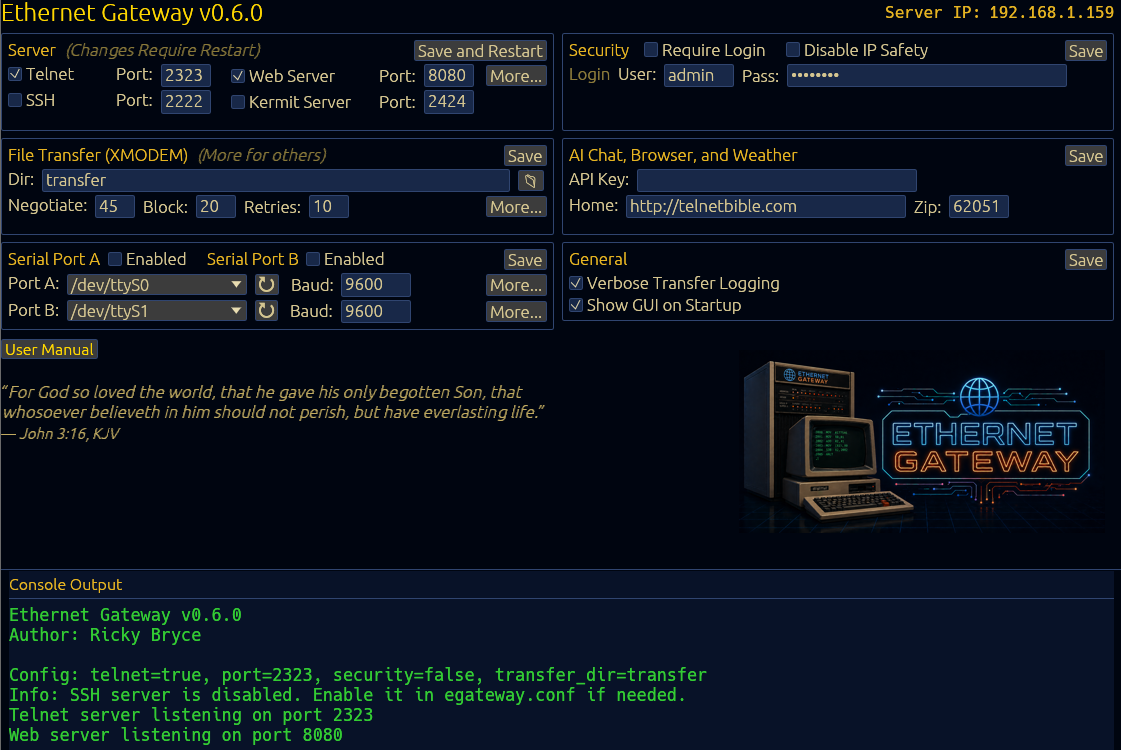
Enable it in the GUI's Server frame (Web Server checkbox) or via the telnet menu's Configuration > Server Configuration > W (Toggle Web). After enabling and restarting, browse to http://<server-ip>:8080/. The page mirrors every GUI frame and uses per-frame Save buttons that match the GUI's behaviors:

  • Server frame: Save and Restart — persists config and triggers a full server restart so port/listener changes take effect.
  • Serial Ports frame: Save — persists and reloads the serial port managers only (telnet/SSH sessions are untouched).
  • Security / File Transfer / AI/Browser / General: Save — persists only; the changes are read live by the relevant code paths without a restart.

The web page includes a live Console Output tail that polls every 2 seconds, a serial-port dropdown with a refresh button that re-scans the host's serial devices on click, and inline confirmation dialogs that warn before disabling the web server or changing its port (either action will break the operator's current browser session).


Serial Modem / Console (Two Independent Ports)

Hayes AT-compatible modem emulation, or a direct telnet-serial console bridge, on each of two physically independent serial ports.

Connect vintage computers with serial interfaces to Ethernet Gateway. The gateway exposes Port A and Port B, each fully independent — its own enabled flag, mode, device, baud, AT/S-register state, and stored phone-number slots. Each port runs in one of two modes:

  • Modem (AT Command) Mode — the default. Accepts standard AT commands and "dials" TCP connections to remote hosts. See the AT command reference below.
  • Telnet-Serial Mode — the Hayes emulator is disabled on this port; the port is exposed via the G  Serial Gateway A/B picker on the main menu so a telnet/SSH user can talk directly to whatever's connected to that wire (microcontroller console, RS-232 device, etc.). See Console Mode below.

The two ports mix and match freely: run a Hayes modem on Port A and a console bridge on Port B, two modems, two bridges, or any combination. Switch a port's mode from the Configuration → M (Serial Configuration) → A or B → T menu, from the GUI's Serial Port frame (open that port's More… popup and use the Mode dropdown), or by setting serial_a_mode / serial_b_mode to modem or console in egateway.conf. All three paths hot-switch the affected port's manager thread within one poll interval — no restart required, and the other port keeps running. The per-port T menu entry is hidden from sessions connected over a modem itself, since switching that port to console mode would tear down the caller's own connection before they could acknowledge.

AT Command Reference

The serial modem emulator speaks the full Hayes AT command set. Every command, the S-registers, the +++ escape sequence, result codes and ATX levels, dialing and dial-string modifiers, the AT+PETSCII Commodore extension, command chaining, and worked examples are documented on a dedicated reference page:

AT Command Reference — the complete command-by-command reference for the serial modem emulator, with usage examples and the +++ escape sequence.
Console Mode (Telnet-Serial Bridge)

When a port is set to Telnet-Serial Mode, that port's Hayes emulator is disabled and it becomes selectable in the G  Serial Gateway A/B picker. Each port toggles independently, so Port A can run the Hayes modem while Port B serves as a console bridge (or vice versa, or both as bridges). This is useful when a serial port is connected to a microcontroller, embedded console, or other RS-232 device that you want to drive directly from a remote shell.

Switching to Console Mode (per port)

  1. GUI: open the chosen port's More… popup from the Serial Port frame and change the Mode dropdown from Modem (AT Command) Mode to Telnet-Serial Mode. Saving reconfigures only the changed port; the other port keeps running.
  2. Telnet/SSH menu: from Configuration → M (Serial Configuration) → A or B, press T (Toggle Modem/Console mode) inside the per-port menu. The banner flips between PORT A - MODEM EMULATOR and PORT A - SERIAL CONSOLE (or B), and the Dialup Mapping / Ring Emulator items hide in console mode (they're modem-only features). The T entry is hidden when you're connected over the modem itself, since flipping that port to console mode would tear down your own session before you could acknowledge — flip the mode from a telnet, SSH, or system-console session instead.
  3. Config file: set serial_a_mode = console (or serial_b_mode = console) in egateway.conf. The change is hot-applied within one manager-poll interval; no restart required.

Using the Bridge

  1. From the main menu, press G (Serial Gateway). An A/B picker appears showing both ports' status; ineligible ports (disabled, modem mode, no device) are dimmed.
  2. Press A or B to pick a port. The gateway prints that port's active framing (port, baud, data/parity/stop, flow) and asks Connect now? (Y/N): — press Y to enter the bridge.
  3. Bytes flow in both directions with no AT processing or IAC injection on the wire side.
  4. Press ESC twice in a row (PETSCII twice on Commodore terminals) to leave the bridge. A single ESC is forwarded to the wire on the next keystroke, so editors that need ESC (vi, emacs) keep working.
Single-user per port: only one telnet/SSH session at a time can hold each port, but Port A and Port B can each host their own concurrent bridge. A second request to the same port gets Another session is already using Port X until the first session disconnects. The Serial Gateway item is also hidden from sessions that came in over a serial port itself, and hidden when neither port is in console mode (so the menu doesn't dead-end at an empty picker).

GUI Console

Graphical configuration and monitoring window built with egui.

When enable_console = true, the GUI window opens automatically on startup. It provides a retro amber-on-dark theme with real-time server management.

Configuration Editor Modify all server settings in real time with immediate save to egateway.conf.
Console Output Scrolling log display (up to 2000 lines) showing connections, transfers, and server activity.
Serial Port Detection Automatically discovers available serial ports on the system.
Server Info Displays local IP addresses and active services.
Settings Sync Configuration changes from telnet/SSH sessions are reflected in the GUI.
Tip: Closing the GUI window does not stop the server. It continues running in headless mode. Press Ctrl-C in the terminal to stop.

Security & Networking
IP Restrictions (Security Disabled)

When security is disabled (the default), Ethernet Gateway restricts access to private and loopback IP ranges only:

Allowed IP Ranges

  • 10.0.0.0/8 — Private (Class A)
  • 172.16.0.0/12 — Private (Class B)
  • 192.168.0.0/16 — Private (Class C)
  • 127.0.0.0/8 — Loopback
  • 169.254.0.0/16 — Link-local

Gateway addresses (*.*.*.1) are rejected except for loopback, preventing accidental exposure on network edges.

Authentication Lockout
PolicyValue
Max failed attempts3 per IP address
Lockout duration5 minutes
Protocol scopeShared across telnet and SSH — an attacker can't bounce between the two to reset the counter
Counter resetAfter lockout expires or successful login
Credential comparisonConstant-time (timing attack resistant)
File Path Security

All file operations are restricted to the configured transfer directory. Filenames are validated to prevent path traversal. Directory changes are canonicalized to prevent symlink escapes.

Sensitive File Protection

On Unix, the following files are written with mode 0o600 (owner read/write only) so other local users can't read them:

  • egateway.conf — contains the unified login password (shared by telnet, SSH, and the web UI) and the Groq API key
  • ethernet_ssh_host_key — the gateway's SSH server private host key
  • ethernet_gateway_ssh_key — the gateway's outgoing SSH client key
  • gateway_hosts — remote-server host keys (privacy: reveals dial history)
  • dialup.conf — phone-to-host mapping

On Windows, NTFS ACLs are inherited from the parent directory. For multi-user Windows boxes, place the binary in a per-user folder (e.g. under %USERPROFILE%) so the ACL inherits owner-only access.

Telnet Gateway DoS Protection

Subnegotiation (IAC SB … IAC SE) bodies from remote servers are capped at 8 KiB to prevent a malicious peer from exhausting memory by sending a huge SB without a terminating IAC SE. The state machine still resyncs on the eventual terminator so the session isn't corrupted.

Signal Handling

Graceful Shutdown

  • SIGINT (Ctrl-C) — Graceful shutdown
  • SIGTERM — Graceful shutdown
  • SIGHUP — Graceful shutdown (Unix only)

Connected sessions receive a shutdown notification before the server stops.


Troubleshooting
Terminal Detection

If your terminal is detected as the wrong type, the troubleshooting feature (press R from the main menu) diagnoses input issues by showing exactly what bytes your terminal sends.

File Transfer Problems
SymptomSolution
Transfer times out before starting Pick the same protocol on both sides: the gateway's upload menu expects XMODEM/YMODEM, ZMODEM, Kermit, or Punter, and the download menu lets you select XMODEM, XMODEM-1K, YMODEM, ZMODEM, Kermit, or Punter explicitly. If your terminal takes a while to open its Send/Receive dialog, increase xmodem_negotiation_timeout (XMODEM / XMODEM-1K / YMODEM, default 45 s), zmodem_negotiation_timeout (ZMODEM, default 45 s), or punter_negotiation_timeout (Punter, default 45 s) in egateway.conf.
Transfer fails partway through For XMODEM/XMODEM-1K/YMODEM raise xmodem_block_timeout and xmodem_max_retries. For ZMODEM raise zmodem_frame_timeout and zmodem_max_retries. For Punter raise punter_block_timeout and punter_max_retries, or lower punter_block_size toward ~40 on a noisy line. Check for a noisy or slow connection.
Consistent block-CRC failures in the same direction The two sides disagree on IAC / CR-NUL escaping. Press I in the File Transfer menu to flip and retry. Not a concern on SSH.
File exceeds size limit XMODEM is limited to 8 MB. Use a different method for larger files.
Connection Problems
SymptomSolution
"Connection refused" from non-private IP Enable security for public IP access, or connect from a private network.
Locked out after failed logins Wait 5 minutes for the lockout to expire.
Disconnected unexpectedly Check idle timeout setting. Set to 0 to disable auto-disconnect.
AI Chat: "No API key configured" Set up a Groq API key in Configuration > Other Settings.
Verbose Logging

Enable verbose mode in Configuration > Other Settings to see detailed XMODEM protocol diagnostics. Useful for debugging file transfer issues.


References

Companion documents that go deeper than this manual.

XMODEM Protocol Reference

A step-by-step walkthrough of the XMODEM family: how the receiver negotiates CRC-16 vs. the older checksum, how 128-byte (XMODEM), 1024-byte (XMODEM-1K), and YMODEM block-0 transfers are framed, and the full handshake for both uploads (gateway receives) and downloads (gateway sends), including block anatomy, error handling, and the timeout tunables.

YMODEM Protocol Reference

What YMODEM adds on top of XMODEM-1K: the block-0 header carrying filename, exact size, mtime, and mode; batch transfers with the end-of-batch null block; and exact size-based truncation (so files that end in 0x1A survive). Covers the full handshake for both uploads and downloads.

ZMODEM Protocol Reference

The Forsberg 1988 streaming protocol: ZDLE escaping, hex / binary16 / binary32 headers, CRC-16 and CRC-32, the ZRQINIT/ZRINIT/ZFILE/ZDATA/ZEOF/ZFIN handshake, batch transfers, autostart detection, and position-based resume / ZSKIP — with step-by-step download and upload flows.

Kermit Transfer Reference

The focused transfer walkthrough: packet anatomy, the Send-Init parameter handshake (QCTL/QBIN/REPT quoting, CHKT block-check types, CAPAS capability intersection), and the F/A/D/Z/B sequence for both uploads and downloads — matching the X/Y/Z pages. For server mode, the G-subcommand table, and every config key, see the comprehensive reference below.

Kermit Protocol Reference

A protocol-level walkthrough of the Kermit file transfer implementation: packet format, the 13 packet types, sliding windows, the SI capability negotiation, attribute (A) packets, and the legacy fallbacks for vintage receivers like AnzioWin. Use this when something on the wire isn't behaving the way you expect, or when you need to map an observed packet back to the Forsberg/da Cruz spec.

Punter C1 Protocol Reference

The Commodore protocol CCGMS, Novaterm, and StrikeTerm speak natively: the 7-byte block header, the dual additive + cyclic checksums, the size-of-next-block field, the GOO/BAD/ACK/S-B/SYN handshake, the two-phase (type block then data blocks) transfer, the end-off, and bad-block recovery — with step-by-step upload and download flows.

Character Code Appendices

Reference tables for every character set the gateway speaks to: ASCII (incl. control codes), ANSI escape sequences and SGR colors, PETSCII (Commodore 64), ATASCII (Atari 8-bit), Baudot/ITA2, ZX Spectrum, and TRS-80. Useful when decoding raw byte streams during debugging or when porting the gateway to talk to a new vintage terminal.

Telnet Negotiation Reference

A detailed guide to how telnet works here: the IAC command bytes, the WILL/WONT/DO/DONT verbs and what each means, the purpose of every option the gateway handles (ECHO, SGA, TTYPE, NAWS, STATUS, TIMING-MARK), subnegotiation, the RFC 1143 Q-method that prevents negotiation loops, and the inbound-server vs outbound-gateway policies — with example exchanges.

SSH Reference

The encrypted access method, both directions: the inbound russh server (Ed25519 host key, unified credentials, the duplex bridge into a session), and the outbound SSH gateway/proxy — trust-on-first-use host-key verification against gateway_hosts, the password-vs-gateway-key auth modes (no fallback), the three on-disk key files, and ANSI stripping for PETSCII / ASCII terminals.

ANSI Escape Sequences

The cursor-control, colour / SGR, erase, screen-mode, and scrolling escape codes — each with its raw hex bytes — from the ANSI appendix. Handy when crafting or decoding the ESC [ … sequences an ANSI terminal uses.


About the Author
Ricky Bryce

Ricky Bryce

Creator and sole developer of Ethernet Gateway. A lifelong enthusiast of retrocomputing and telecommunications, Ricky built this project to bridge the gap between vintage hardware and modern network services.

Ethernet Gateway is released under the GNU General Public License v3.0 (or later).


Screenshot

The Ethernet Gateway GUI console in action.

Ethernet Gateway GUI Console